How to Print Custom Diamond Painting Canvases with Vector EPS: The Complete High-Resolution Guide
How to print diamond painting charts that are sharp, the right size, and ready to use: without blurry symbols or misaligned grids.
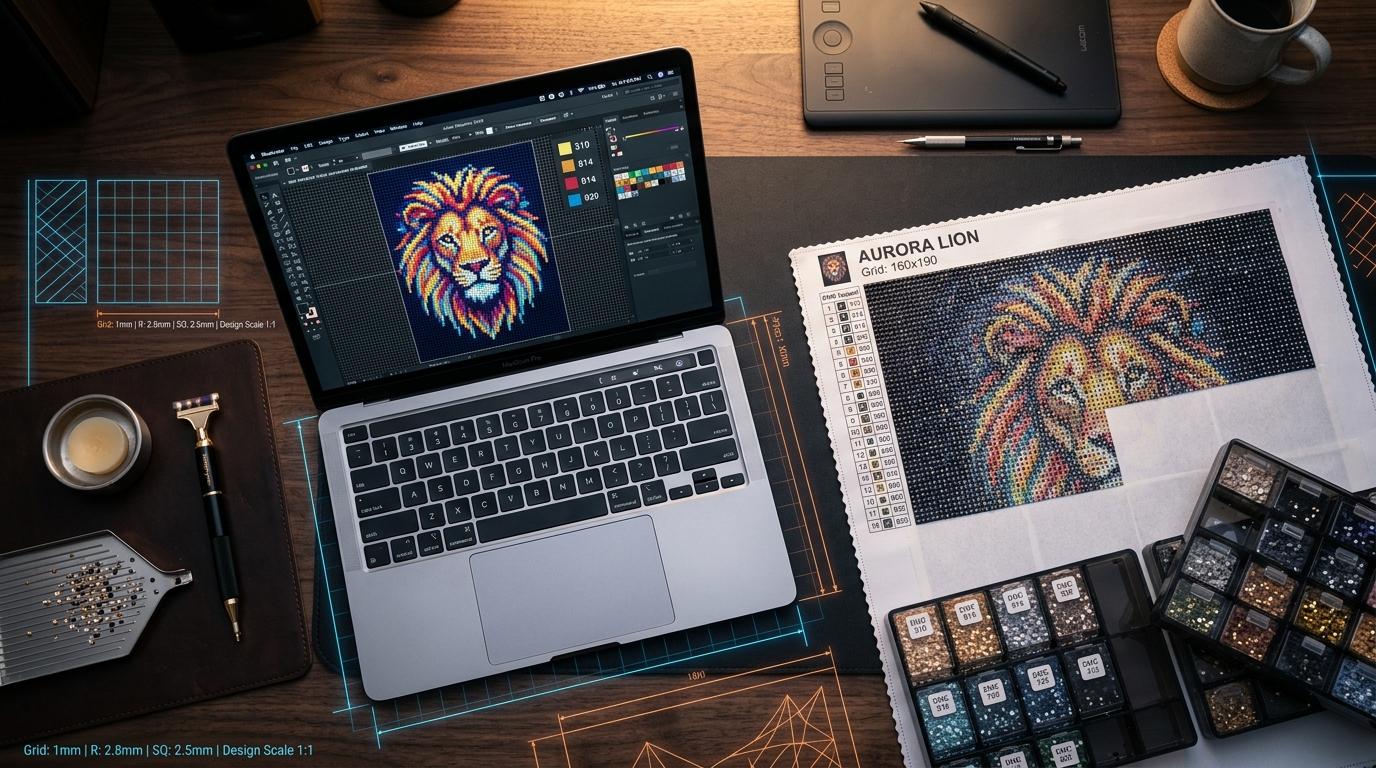
At a Glance
Key findings and core takeaways from our testing and hands-on crafting experience.
Why Regular Image Files Don't Work for Canvas Printing#
If you've tried printing a diamond painting chart as a regular JPEG or PNG, you've probably run into this frustration:
- Grid lines go thick and fuzzy at canvas sizes.
- Small symbols like B, 8, D, and 0 blur into unreadable blobs.
- Even a tiny size error per cell adds up to a noticeable misalignment across a full canvas, meaning drills end up not fitting.
This happens because regular images are made of fixed pixels. When you scale them up for printing, the printer has to guess what to fill in, resulting in a blurry print.
For sharp, perfectly sized canvas prints, you need a Vector EPS file, a format that stores your chart as precise mathematical instructions rather than pixels.
What is a Vector EPS File?#
EPS (Encapsulated PostScript) is a file format used by professional printers and design software like Adobe Illustrator, CorelDRAW, and Inkscape.
Unlike an image file made of pixels, an EPS file describes your chart using precise mathematical instructions, so it stays perfectly sharp no matter how large you print it.
Vector EPS vs. Regular PNG: At a Glance
| Feature | Regular Image (PNG / JPEG) | Vector EPS (.eps) |
|---|---|---|
| Grid Line Sharpness | Blurry and fuzzy when enlarged | Sharp at any size |
| Symbol Legibility | Pixelated (hard to read small symbols) | Crisp and clear |
| Physical Sizing Accuracy | Often slightly off (distorted by printer scaling) | Exact millimeter measurements |
| Print Shop Compatibility | Can introduce blurriness | Works perfectly with professional printers |
| Software Support | Basic photo viewers | Adobe Illustrator, CorelDRAW, Inkscape |
| File Size | Very large for big canvases | Compact |
When you export a pattern from DrillGrid or test it in our Free Photo to Pattern Generator, every single cell is mathematically calibrated to real-world metric dimensions.
Turn your own photo into a diamond painting chart
Upload any photo, match 480+ official DMC colors, compare round & square drills, and preview high-res detail in your browser.
How DrillGrid Sizes Everything Perfectly#
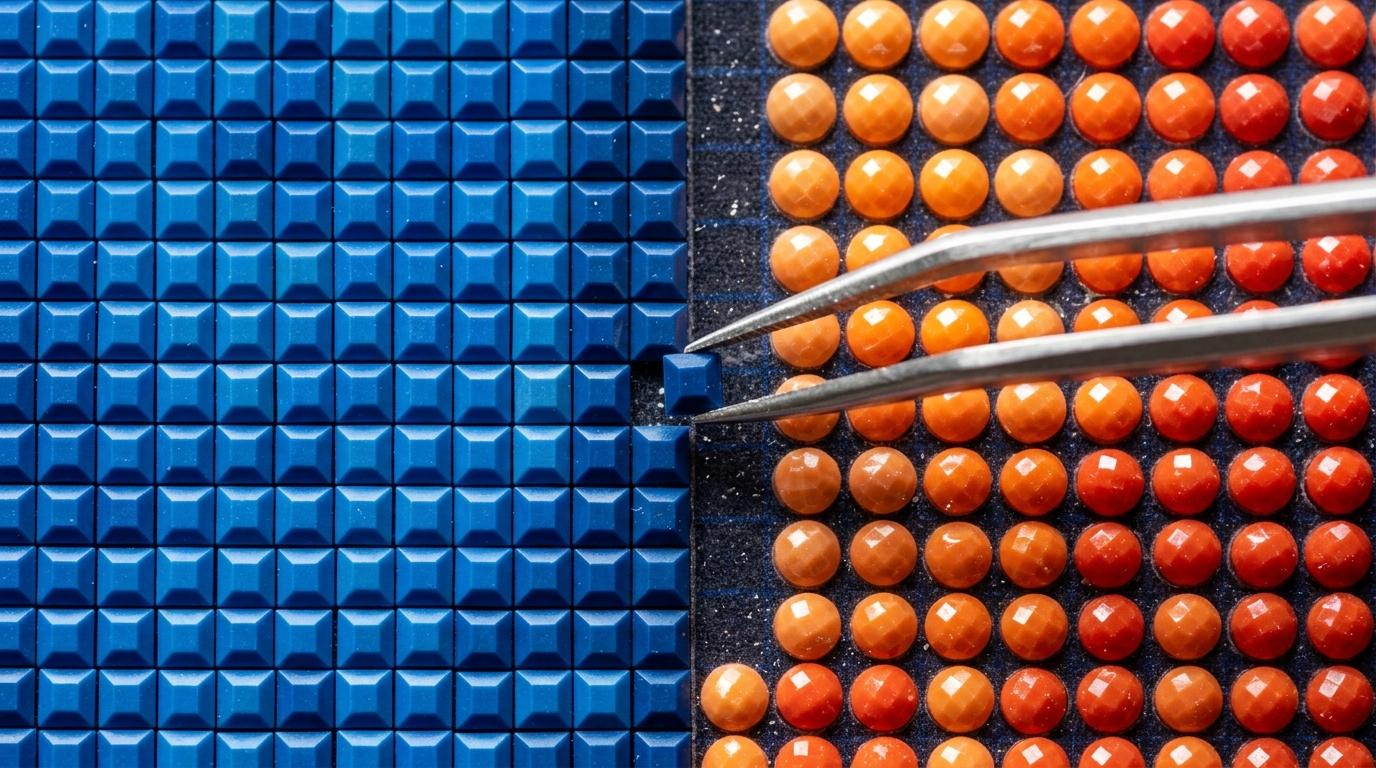
Diamond painting drills are made to exact physical sizes:
- Square Drills: exactly 2.5 mm × 2.5 mm
- Round Drills: exactly 2.8 mm across
When DrillGrid generates your EPS file, it calculates your chart's dimensions to the exact millimeter, so every grid square matches your physical drills with no adjustment needed. Symbols are sized and colored for maximum contrast (light symbols on dark drills, dark symbols on light drills) to make them easy to read while crafting.
For drill count and weight calculations, see our Diamond Painting Drill Calculator Guide.
DrillGrid's 3 EPS Export Modes Explained#
DrillGrid provides three purpose-built EPS export modes depending on your production workflow:
1. Full Layout (Canvas + Legend + Coordinate Rulers)
- What it includes: The full-color pattern grid with symbols, border margin, coordinate tick marks (labeled every 10 drills), and a comprehensive side DMC legend table showing the DMC code, symbol, drill count, and color swatch.
- Best suited for: Complete standalone chart printing on large poster paper, proofing, or framed reference sheets.
2. Grid & Symbols Only (Direct Canvas Printing)
- What it includes: The pattern matrix with symbols and subtle grid lines, without side legends or bulky borders.
- Best suited for: Printing directly onto pre-cut adhesive canvas fabric, tracing paper, or transparent film overlays for light pads.
3. Color Only (Pure Mosaic Art)
- What it includes: The clean vector mosaic showing the exact DMC color blocks without grid lines, symbols, or text.
- Best suited for: Digital packaging previews, Etsy product mockups, box cover art, or converting your custom chart into digital vector pixel art in Adobe Illustrator.
Step-by-Step: Printing at Exact 1:1 Scale#
To ensure your printed canvas matches your drills with zero physical error, follow these exact settings across popular design programs:
Method A: Printing from Adobe Illustrator
- Open your exported
.epsfile in Adobe Illustrator (File → Open). - Go to File → Document Setup and verify the Units are set to Millimeters.
- Press Ctrl+P (Windows) or Cmd+P (Mac) to open the Print Dialog.
- Under Scaling, choose Do Not Scale (or set Scale: 100%).
- In your printer driver properties, set Media Type to Heavyweight Matte / Fine Art Canvas and quality to High (1200+ DPI).
Method B: Printing from Inkscape (Free & Open Source)
- Open Inkscape and drag in your
.epsfile. - Select File → Document Properties and confirm the display units match your canvas metric sizing.
- Go to File → Print → Page Setup and ensure the paper size matches or exceeds your canvas dimensions.
- Set Scale to 100.0%.
Method C: Commercial Print Shops (FedEx, Staples, Local Large-Format Printers)
- Send the native
.epsfile (or export a 100% unscaled vector PDF from Illustrator). - Specify: "Print at 100% true scale with NO margin fitting or auto-scaling."
- Request waterproof canvas fabric or matte polypropylene banner film (200–260 GSM).
Selecting Canvas Material & Sticky Adhesive#
Once you have your 1:1 scale printed vector chart, you need to turn it into a working diamond painting canvas:
1. Poured Glue vs. Double-Sided Adhesive Tape
- Poured Glue (Recommended): High-clarity liquid acrylic adhesive poured over the printed canvas. It remains tacky indefinitely, is forgiving when sliding drills into place, and doesn't yellow or bubble over time.
- Double-Sided Adhesive Tape (Hi-Tack Craft Sheets): Fast and convenient for DIYers. Apply a clear double-sided adhesive sheet (such as Sookwang or Silhouette Double-Sided Adhesive Sheets) directly over your printed chart, burnish with a brayer roller, and peel back sections as you work.
2. Choosing the Best Base Material
- Waterproof Cotton/Polyester Canvas Fabric: Flexible, wrinkle-resistant, and identical to premium commercial diamond painting kits.
- Synthetics / Banner Film (Tyvek / Polypropylene): Super smooth surface that prevents glue absorption and keeps drill alignment laser-straight.
- Cardstock / Heavyweight Paper: Great for small framed projects or practicing with leftover drills (see our Leftover Drills Project Guide).
3. Clear Protective Release Film
Always cover your adhesive layer with clear transparent release paper or parchment paper (silicone-coated). Never use standard wax paper, which will stick permanently to the glue!
Troubleshooting Common Canvas Printing Issues#
Issue 1: Drills Don't Fit the Printed Squares (Grid Creep)
- Cause: Printer hardware margins caused the driver to apply a "scale to printable area" adjustment (usually shrinking the chart by 3–5%).
- Fix: Measure a 10-drill section with a digital caliper or ruler. 10 square drills should measure exactly 25.0 mm; 10 round drills should measure 28.0 mm. If it measures 24.1 mm, disable auto-fit in your printer driver.
Issue 2: Faded or Washed-Out DMC Color Blocks
- Cause: Default RGB-to-CMYK color conversion in printer settings.
- Fix: In your print properties, enable ColorSync or Adobe RGB (1998) color management and set the output profile to High Quality Photo / Canvas.
Issue 3: Inks Smearing Under Liquid Glue
- Cause: Using water-based dye inks on non-coated paper.
- Fix: Use a pigment-based inkjet printer or color laser printer. If using dye inks, spray your printed sheet with a light coat of workable matte fixative spray before applying adhesive.
Frequently Asked Questions#
Ready to turn your photo into a diamond painting?
Upload any photo and get a printable pattern with exact colors and drill counts, free to try.
Free preview in your browser · No account or download needed
Frequently Asked Questions
Can I open DrillGrid EPS files in free software like GIMP or Inkscape?+
Yes! Inkscape opens DrillGrid PostScript EPS vector files natively with full layer support and millimeter scaling. GIMP can rasterize EPS files at your specified DPI (set to 600 DPI for ultra-sharp canvas rendering).
What is the exact physical size of diamond painting square vs round drills?+
Standard square drills measure exactly 2.5 mm × 2.5 mm (40 drills per 10 cm). Standard round drills measure 2.8 mm in diameter (35.7 drills per 10 cm). DrillGrid's EPS exporter calculates exact bounding boxes based on these standard dimensions.
Why should I use EPS instead of PDF for diamond painting printing?+
EPS is a raw vector PostScript format optimized for commercial print RIPs and graphic design software (Illustrator, CorelDRAW, UV printers). It allows designers to manipulate individual vector layers, adjust line weights, and combine multiple patterns without raster downsampling.
How do I make my printed canvas sticky for drills?+
You can apply clear double-sided adhesive craft sheets (like Sookwang or Aleene's Tack-It Over & Over) or brush on high-clarity poured glue acrylic adhesive. Always protect the tacky surface with clear release paper while drilling.
Continue Reading
More diamond painting guides, DMC color tools, and sizing formulas.
How to Turn Any Photo into a Custom Diamond Painting Chart (Step-by-Step)
Learn how to turn any personal photo, pet picture, or artwork into a print-ready diamond painting chart with exact DMC colors.
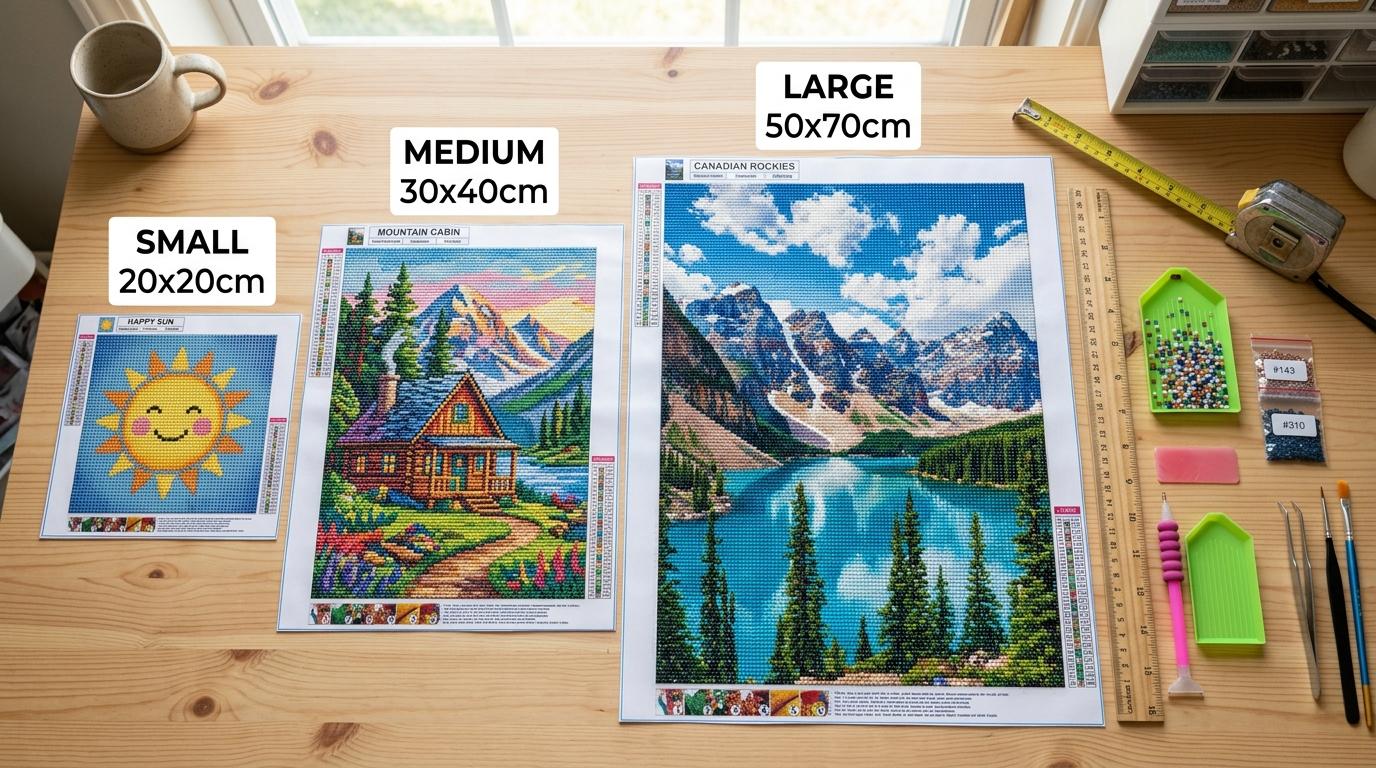
Diamond Painting Sizes: Complete Canvas Size Chart & Guide
The complete guide to diamond painting sizes. Compare standard canvas dimensions in cm and inches, drill counts, frame sizes, and detail scores.
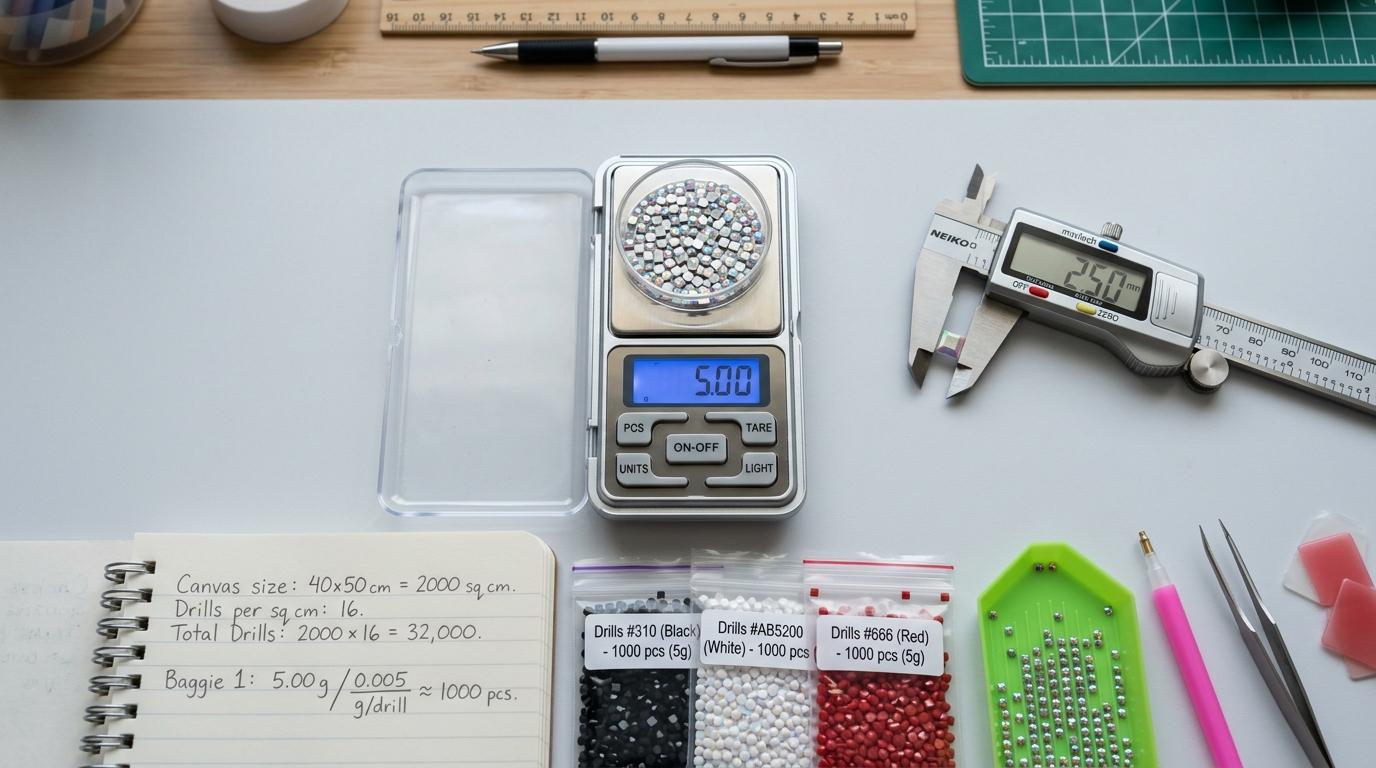
Diamond Painting Drill Calculator: Weight Math & Bag Counts
Use our free diamond painting drill calculator to find exact drill counts, convert grams to beads, estimate bag requirements, and budget spill reserves.
Square vs. Round Diamond Drills: Which Is Right for Your Project?
Square drills or round drills? Compare how each one looks, how easy they are to place, and which is better for your next project.